Unlock your laptop's full gaming potential with our expert 2026 guide designed for the busy US gamer. This comprehensive resource dives deep into practical, actionable strategies on how to enhance gaming performance on laptop devices, addressing common pain points like stuttering frame rates, overheating, and slow load times. We cover everything from essential software optimizations and driver updates to clever hardware tweaks and smart upgrade considerations that respect your budget and time. Learn to balance your passion for gaming with life's demands, discover trending games, and master techniques to keep your system running smoothly. Whether you're a casual player looking for smoother experiences or aiming for competitive edge in trending titles, this guide provides the navigational and informational insights you need to transform your laptop into a powerful gaming machine, ensuring you get the most value and fun from every session without the usual tech headaches or marketing hype. Discover why an optimized setup makes all the difference in modern gaming.
How can I immediately improve my laptop gaming performance for free?
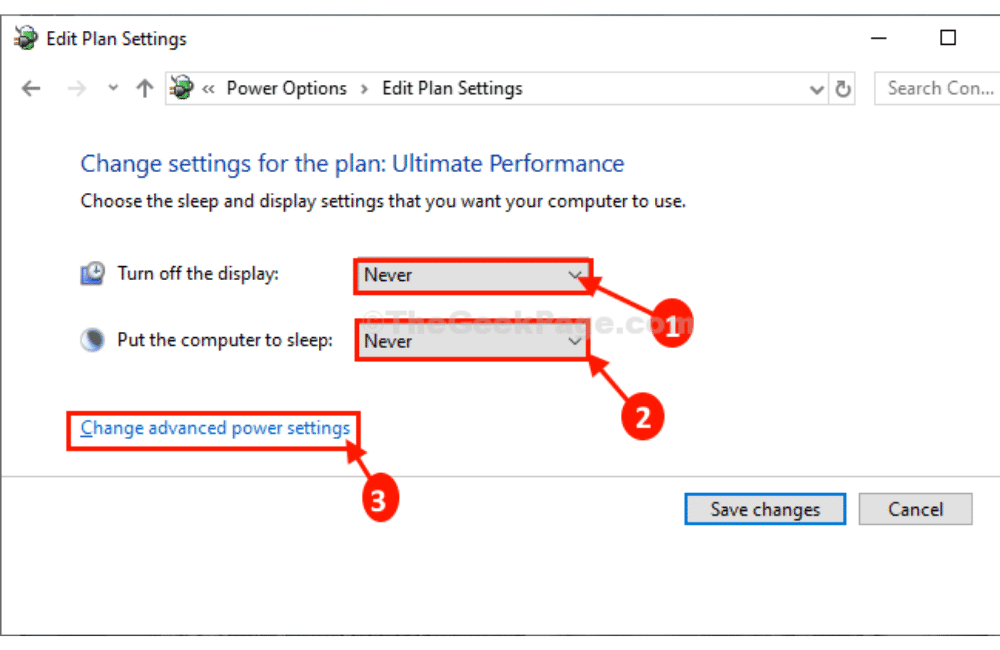
Start by ensuring your laptop is plugged into its power adapter, as performance is often throttled on battery. Immediately close all unnecessary background applications, browser tabs, and widgets via Task Manager (Ctrl+Shift+Esc) to free up CPU and RAM. Set your Windows power plan to 'High Performance' or 'Ultimate Performance'. Finally, update your graphics drivers to the latest version directly from NVIDIA or AMD's official websites. These steps provide instant, free performance boosts.
What are the most crucial Windows settings to tweak for better gaming?
Optimizing Windows settings is key. First, enable 'Game Mode' in Windows Settings. Navigate to 'System > Display > Graphics settings' to add your games and set them to 'High performance' to utilize your dedicated GPU. Disable non-essential visual effects under 'System > Advanced system settings > Performance Settings'. Also, ensure your operating system and drivers are updated regularly, but be mindful of any reported issues with recent Windows updates and specific games.
How important is cooling for sustained laptop gaming performance?
Cooling is extremely important for sustained laptop gaming performance. Overheating causes components like your CPU and GPU to 'thermal throttle', which means they intentionally reduce their speed to prevent damage, leading directly to lower frame rates and stuttering. Ensure vents are clear, use a cooling pad, and consider internal dust cleaning every 6-12 months. Better cooling prevents throttling, ensuring your laptop maintains peak performance throughout your gaming session.
What hardware upgrades offer the best value for a gaming laptop on a budget?
The two most impactful and budget-friendly hardware upgrades for a gaming laptop are RAM and storage. Upgrading from 8GB to 16GB of RAM significantly improves multitasking and loading times for modern games. Replacing a traditional HDD with an SSD, or upgrading to a faster NVMe SSD, dramatically reduces game load times and overall system responsiveness, making your entire gaming experience feel much snappier. Always check your laptop's compatibility before purchasing.
Why do I need to keep my graphics drivers updated, and how often?
Keeping your graphics drivers updated is essential because manufacturers frequently release new versions that include performance optimizations for recently released games, bug fixes, and stability improvements. Aim to update your drivers at least once a month, or whenever a major new game you plan to play is released. Always download the latest drivers directly from the official NVIDIA, AMD, or Intel websites for optimal performance and reliability.
Can a poor internet connection impact my gaming performance on a laptop?
Yes, a poor internet connection significantly impacts online multiplayer gaming performance, often leading to frustrating lag spikes, high ping, and disconnects, which are critical in competitive titles. Even with a powerful laptop, a slow or unstable connection will hinder your experience. To optimize, use an Ethernet cable instead of Wi-Fi, close background downloads/streams, and configure Quality of Service (QoS) on your router if available. A stable connection ensures smooth online gameplay.
What in-game settings should I lower first to boost FPS on my laptop?
To boost FPS in games without completely sacrificing visual quality, prioritize lowering the most resource-intensive settings first. These typically include 'Resolution' (try slightly lower than native), 'Anti-aliasing', 'Shadow Quality', 'Volumetric Lighting', and 'Post-processing effects'. Experiment by reducing these settings incrementally. Often, medium presets with specific high-impact settings lowered can provide a significant FPS increase while maintaining an enjoyable visual experience on your laptop.
Are you a dedicated gamer who balances late-night raids with early morning meetings, or competitive matches with family responsibilities? You are not alone. With 87% of US gamers regularly engaging in their passion and many averaging over 10 hours a week, maintaining peak performance on your laptop is more crucial than ever. There is nothing more frustrating than sitting down for a precious hour of relaxation, only to be met with choppy frame rates, game stuttering, or an overheating machine. You want to unwind, build skills, or connect with friends in games like Palworld, Helldivers 2, or even classic Stardew Valley, but your laptop just is not keeping up. This guide is your ultimate resource on how to enhance gaming performance on laptop systems, specifically tailored for the busy adult gamer. We will cut through the hype and provide practical, easy-to-implement solutions to get your laptop running games smoother, faster, and more reliably, without breaking the bank or taking up your valuable time. Let us make every gaming session count.
We understand that you value value for money, practical solutions, and staying current without being bombarded by constant upgrade cycles. This article focuses on real-world tips and tricks that address common pain points like setup issues, performance bottlenecks, and smart hardware choices on a budget. We will delve into optimizing your system, managing your hardware, and even how to balance your gaming life effectively. Get ready to transform your laptop gaming experience from frustrating to fantastic.
Why is my gaming laptop suddenly performing poorly?
Many factors can contribute to a sudden drop in your laptop's gaming performance, leaving you wondering why your once smooth experience has turned into a slideshow. Often, it is a combination of software issues and hardware strain. Common culprits include outdated graphics drivers, excessive background applications consuming precious CPU and RAM resources, thermal throttling due to poor cooling or dust buildup, malware infections, or even recent Windows updates that conflict with your gaming setup. Sometimes, new game patches can also introduce performance issues on specific hardware configurations. It is like trying to run a marathon with extra weight on your back; your laptop simply cannot dedicate enough power to the game itself.
Understanding the root cause is the first step to finding the right solution. For example, a laptop that is hot to the touch and only slows down after 15-20 minutes of gaming almost certainly has a thermal throttling issue. If it is slow from the moment you launch a game, background processes or outdated drivers are more likely to blame. A systematic approach to troubleshooting will help pinpoint the exact problem.
What are the immediate free steps I can take to boost laptop FPS?
You do not always need to spend money to see significant improvements in your laptop's gaming performance. There are several free, immediate actions you can take right now. First, ensure your laptop is plugged into the power adapter; laptops often limit performance on battery power. Next, close all unnecessary background applications, browser tabs, and widgets. Programs like Discord, Spotify, or even multiple Chrome tabs can quietly consume valuable RAM and CPU cycles. Access your Task Manager (Ctrl+Shift+Esc) to identify and end processes that are not essential. Also, make sure your Windows power plan is set to 'High Performance' or 'Ultimate Performance' if available. These basic steps can often provide a noticeable FPS bump and are quick to implement before any gaming session.
How do I optimize Windows settings for maximum gaming performance?
Windows itself offers several settings that, when tweaked, can significantly improve your gaming experience. Start by disabling visual effects that consume resources without adding much to gaming, such as animations and transparency effects. You can find these in 'System > Advanced system settings > Performance Settings'. Also, activate 'Game Mode' in Windows settings ('Gaming > Game Mode') which helps prioritize game processes. For graphics-intensive games, you can assign specific games to use your dedicated GPU over integrated graphics by going to 'System > Display > Graphics settings' and adding the game executable, then selecting 'High performance'. Keep your operating system and drivers up-to-date, but always check for known issues with gaming before applying major Windows updates.
When should I update my graphics drivers, and where do I find them?
Keeping your graphics drivers updated is perhaps the single most critical, free step to enhance gaming performance on laptop systems. Graphics card manufacturers like NVIDIA, AMD, and Intel constantly release optimized drivers that improve performance for new games and fix bugs. You should aim to update your drivers at least once a month, especially if a new AAA title you plan to play has recently been released. Always download drivers directly from the official manufacturer's website: NVIDIA GeForce Drivers, AMD Drivers & Support, or Intel Graphics Drivers. Avoid relying solely on Windows Update for this, as it might not always provide the very latest versions. A clean installation of drivers is recommended to avoid potential conflicts.
Is proper cooling really that important for laptop gaming performance?
Absolutely. Proper cooling is paramount for gaming laptops, influencing not just performance but also the longevity of your hardware. Laptops pack powerful components into a confined space, generating significant heat. When components like your CPU and GPU get too hot, they automatically reduce their clock speeds to prevent damage, a process known as thermal throttling. This throttling directly leads to lower FPS and stuttering. Ensure your laptop's vents are unobstructed, elevate your laptop for better airflow (a simple book or a specialized cooling pad works wonders), and consider cleaning out dust from the internal fans every 6-12 months. Investing in a good cooling pad, especially for extended gaming sessions, can provide a significant, stable performance boost and protect your investment.
What about hardware upgrades for a gaming laptop, even on a budget?
While laptops are less upgradable than desktops, some components offer significant performance boosts. The two most common and impactful upgrades are RAM and storage. Upgrading from 8GB to 16GB RAM can drastically improve multitasking and game loading times, especially for modern games that are RAM-hungry. Switching from a traditional HDD to a Solid State Drive (SSD), or upgrading an existing SATA SSD to an NVMe SSD, will revolutionize game load times and overall system responsiveness. These upgrades are relatively affordable and can often be done by a knowledgeable user or a professional without needing to buy a whole new machine. Always check your laptop model's specifications for compatible components before purchasing.
Who benefits most from a clean software environment on their gaming laptop?
Every gamer benefits from a clean software environment, but those with older laptops or more modest specifications will see the most significant improvements. A clean system means fewer background processes competing for resources, less storage clutter, and no hidden malware slowing things down. Gamers balancing work applications with play will also appreciate a streamlined setup that transitions smoothly between tasks. Regularly uninstalling unused programs, running disk cleanup, and periodically scanning for viruses and adware ensures your laptop dedicates its power to what matters: your games. Think of it as spring cleaning for your digital life; it just makes everything run better.
How do I balance competitive online gaming with a busy schedule?
Balancing gaming with life's demands is a reality for many US gamers, particularly those around the average age of 36. This month's social gaming trends show that quick, engaging experiences and cooperative titles are on the rise. Focus on games that offer shorter sessions or have clear progression paths even in limited playtime. Communicate your availability with your gaming friends or guild members to set realistic expectations. Utilize Discord for planning sessions and staying connected. Prioritize games that offer stress relief or skill-building in manageable chunks. Remember, gaming should be a source of relaxation and fun, not another chore. Optimize your laptop so when you do have time, your experience is smooth and enjoyable, making the most of every precious minute.
What are the best in-game settings to tweak for higher FPS without sacrificing too much quality?
Finding the sweet spot between visual fidelity and performance is key to a satisfying gaming experience. The most impactful in-game settings to lower for higher FPS are usually 'Resolution', 'Anti-aliasing', 'Shadow Quality', 'Volumetric Lighting', and 'Post-processing effects'. Reducing your game's resolution to slightly below your native screen resolution (e.g., 1600x900 instead of 1920x1080) can yield massive FPS gains with a moderate visual hit. Lowering shadow quality significantly reduces GPU load. Experiment with these settings incrementally. Start with medium presets and adjust individual options downwards until you find a comfortable balance. Many games, like Call of Duty Warzone or Apex Legends, also offer performance mode presets that are a good starting point.
Are external monitors better for laptop gaming performance?
While an external monitor does not inherently boost your laptop's raw processing power, it can indirectly improve the gaming experience and sometimes performance. When using an external monitor, your laptop's internal display might be disabled, freeing up some minor GPU resources that were rendering to both screens. More importantly, external monitors often offer higher refresh rates (e.g., 144Hz, 240Hz) and faster response times than built-in laptop screens, leading to a much smoother, more responsive visual experience that *feels* like better performance. For competitive gamers, this can be a significant advantage, reducing input lag and improving target tracking. Ensure your laptop's HDMI or DisplayPort output supports the desired refresh rate and resolution.
How can I ensure my network connection is optimized for online multiplayer games?
For online gamers, a stable and fast internet connection is just as vital as raw hardware power. Lag spikes and high ping can ruin any competitive match. To optimize your network, always prefer an Ethernet cable connection over Wi-Fi, especially if your router is nearby. If Wi-Fi is your only option, ensure you are on the 5GHz band for less interference and a stronger signal. Close any streaming services or large downloads on your network while gaming. You can also prioritize game traffic using Quality of Service (QoS) settings on your router, if available. Finally, run a speed test before gaming to ensure your connection is performing as expected. A reliable connection minimizes frustration and helps you stay competitive in games like Valorant or League of Legends.
You have made it this far, which means you are serious about getting the most out of your laptop gaming experience. From fine-tuning Windows to smart hardware choices and maintaining your machine, every step contributes to a smoother, more enjoyable time. With 87% of US gamers regularly jumping online, optimizing your setup is not just about performance; it is about protecting your precious downtime and maximizing your fun. We hope these practical tips empower you to take control of your gaming performance without feeling overwhelmed or needing a new rig every year.
What is your biggest gaming challenge with your laptop? Comment below and let us help you conquer it!
FAQ Section
What is VSync and should I use it?
VSync (Vertical Synchronization) is a graphics setting that synchronizes your game's frame rate with your monitor's refresh rate to prevent screen tearing. While it eliminates tearing, it can introduce input lag and cap your FPS, which is undesirable in competitive games. For single-player, visually stunning games, it can improve smoothness. For competitive online games, it is generally recommended to keep VSync off and rely on G-Sync or FreeSync if your monitor and GPU support them.
How often should I clean my laptop's internal components?
For optimal thermal performance and longevity, it is recommended to clean your laptop's internal components, especially the fans and heatsinks, every 6 to 12 months. This helps remove dust buildup that obstructs airflow and causes overheating. If you notice increased fan noise or higher temperatures, it might be time for a cleaning. Professional cleaning is advisable if you are uncomfortable opening your laptop.
Does closing browser tabs really help gaming performance?
Yes, absolutely! Modern web browsers, especially with many tabs open, can consume significant amounts of RAM and CPU resources. Closing unnecessary browser tabs, particularly those with streaming videos or complex web applications, frees up these resources, allowing your laptop to dedicate more power directly to your game, leading to smoother performance and higher frame rates.
Can external storage slow down my games?
External storage, especially traditional USB Hard Disk Drives (HDDs), can significantly slow down game load times and potentially cause stuttering if the game assets cannot be read quickly enough. For optimal gaming performance, always install games on your laptop's internal SSD (Solid State Drive). External SSDs connected via fast USB 3.0 or higher can be a viable alternative, but internal storage is generally preferred for primary game installations.
What about Game Mode in Windows and is it effective?
Windows Game Mode is a built-in feature designed to optimize your PC for gaming by prioritizing game processes and suspending background activities. While its impact can vary depending on your system specifications and the game, many users, especially those with mid-range or older hardware, report noticeable improvements in stability and frame rates. It is generally recommended to keep Game Mode enabled for better gaming performance.
Is overclocking my laptop a good idea for performance?
Overclocking your laptop's CPU or GPU can technically increase performance, but it is generally NOT recommended for most laptop users. Laptops have limited cooling capabilities, and overclocking significantly increases heat production, leading to severe thermal throttling, system instability, and potential hardware damage over time. Focus on the optimization tips provided in this guide rather than risking your laptop's longevity with overclocking.
How can I stay updated on gaming trends and new optimization techniques?
Staying current with gaming trends and optimization techniques is easy! Follow reputable tech and gaming news websites, subscribe to popular gaming YouTube channels that focus on hardware and performance, and engage with online gaming communities on platforms like Reddit or Discord. These sources often provide timely information on new game releases, driver updates, and emerging optimization strategies, helping you keep your setup cutting-edge.
Optimize Windows for gaming, update graphics drivers, manage background apps, ensure proper cooling, adjust in-game settings, consider budget-friendly hardware upgrades, maintain a clean system, and balance gaming with real-life commitments to enhance laptop gaming performance. These steps are crucial for busy gamers seeking efficient solutions.
35


How To Optimize ANY LAPTOP For Gaming BOOST FPS INCREASE PERFORMANCE . How To Set Up Boost Your Laptop For Peak Gaming Performance YouTube . 20 Ways To Improve Gaming Performance On Your Laptop Artofit . How To Boost Laptop Performance For Gaming How To Boost Laptop Performance For Gaming. 3 Critical Tips And Tricks For Maximizing Performance On Your Gaming 1920 80



20 Ways To Improve Gaming Performance On Your Laptop Artofit . How To Improve Gaming Performance On Your Laptop Dignited Msi Skylake Laptop Gt72 Gs60 Ge 72 Ge62 Review 7 0 . How To Improve Gaming PC Performance At Its Best EXEIdeas Let S Improve Gaming PC Performance . Boost Gaming FPS In 2025 10 Free Tweaks That Work 7 Genius Ways To Boost Gaming Performance For Free In 2025 . How To Increase FPS Boost Gaming Performance On PC Img 03


How To Improve Gaming Performance On A Laptop Tips And Tricks HP Victus Gaming Laptop 768x403 . Learn New Things Best NVIDIA Graphics Settings For Gaming Maximum 1111 . How To Improve Gaming Performance On A Laptop The Tech Lounge Improve Laptop Gaming Performance 772x290 . HOW TO IMPROVE LAPTOP GAMING PERFORMANCE YouTube Hqdefault . How To Increase Gaming Laptop Performance Robots Net How To Increase Gaming Laptop Performance 1701764499

Best CPU For Gaming In 2026 Tested Desktop Laptop Picks Computer Upgrades To Improve Gaming 2026.webp. Maximize Your Gaming Laptop Performance With These Essential Programs Maximize Your Gaming Laptop Performance With These Essential. Optimize Your Gaming PC For Best Performance And FPS Boost YouTube . How To Improve Gaming Performance On Laptop 7 Quick Steps How To Improve Gaming Performance On Laptop . How To Choose The Best High Performance Gaming Laptop In 2026

How To Optimize Gaming Laptop Performance Complete Guide 2026 How To Optimize Gaming Laptop Performance . How To Improve Your Gaming Laptop S Performance On Battery Power. How To Improve A Laptop S Gaming Performance At Ryder Virtue Blog How To Improve Gaming Performance On Laptop 1 . How To Improve A Laptop S Gaming Performance At Ryder Virtue Blog How To Improve Gaming Performance On Laptop . How To Improve Gaming Performance On Your Laptop HB Tech How To Improve Gaming Performance On Your Laptop 2 1



How To Increase FPS Boost Gaming Performance On PC Img 08 . How To Improve PC Performance For Gaming Ultimate Guide Diablo 4 Has Run Out Of Memory Min . How To Increase Laptop Performance For Gaming Upgrade And Game On Thumbnail .webp. How To Improve Gaming Performance On Laptop A Full Guide Rog Card 1 1024x555 . How To Improve Gaming PC Performance At Its Best EXEIdeas Let S How To Improve Gaming PC Performance At Its Best 400x200



How To Improve A Laptop S Gaming Performance At Ryder Virtue Blog How To Improve A Laptop For Gaming . Best Gaming PC Builds For 2026 Best Gaming PC Builds For 2026.webp. How To Improve Gaming Performance On Laptop . How To Optimize The Performance Of Your Gaming Laptop 2023 Optimize Performance Of Gaming Laptop 3 . Ultimate Guide To Boost Your Laptop For Gaming Top Performance