Unlock the secrets to streaming your favorite Steam games with this comprehensive guide tailored for the modern US gamer. Whether you are balancing a full-time job, family commitments, or just want to share your latest gaming triumphs with friends, learning how to streaming Steam games effectively is a game-changer. This article provides actionable steps, performance optimization tips, and smart budgeting advice to help you get started without the usual setup headaches. Discover how to enhance your social gaming experience, build skills, and stay current with trending titles, all while managing your valuable time. We cut through the hype to deliver practical solutions for common pain points, ensuring your streaming journey is smooth, enjoyable, and rewarding. Learn to master your broadcast, connect with your community, and make every gaming session count, regardless of your hardware or schedule. Dive into the world of shared gaming fun today.
How do I set up OBS Studio to stream my Steam game to Twitch?
To set up OBS Studio for streaming Steam games to Twitch, first download and install OBS Studio. During the initial wizard, choose 'Optimize for streaming, recording is secondary.' Select Twitch as your service and connect your account. In OBS, add a 'Game Capture' source, set it to 'Capture specific window,' and select your running Steam game. Ensure your microphone and desktop audio are configured in the audio mixer. Finally, adjust your video output settings (resolution, FPS) and bitrate based on your internet speed and PC power. Hit 'Start Streaming' to go live.
What are the common reasons for stream lag when playing Steam games?
Common reasons for stream lag when playing Steam games include insufficient upload bandwidth, an overloaded CPU or GPU (trying to game and encode simultaneously), incorrect encoder settings (e.g., using a CPU-intensive encoder on a weaker CPU), or outdated graphics drivers. Background applications consuming resources and Wi-Fi instability can also contribute to lag. Checking your internet speed and optimizing your OBS settings are usually the first steps to diagnose and fix the issue.
Can I stream Steam games to YouTube without a powerful gaming PC?
Yes, you can stream Steam games to YouTube without a super powerful gaming PC, but you will need to make some compromises. Focus on streaming at 720p resolution and 30 frames per second. Utilize your GPU's hardware encoder (NVENC for NVIDIA or AMF/VCE for AMD) if available, as it is much more efficient than CPU encoding for budget systems. Reduce your game's graphical settings to free up system resources. A stable internet connection with at least 5-10 Mbps upload speed is crucial for decent quality at these settings.
What is the difference between Steam Remote Play and public streaming?
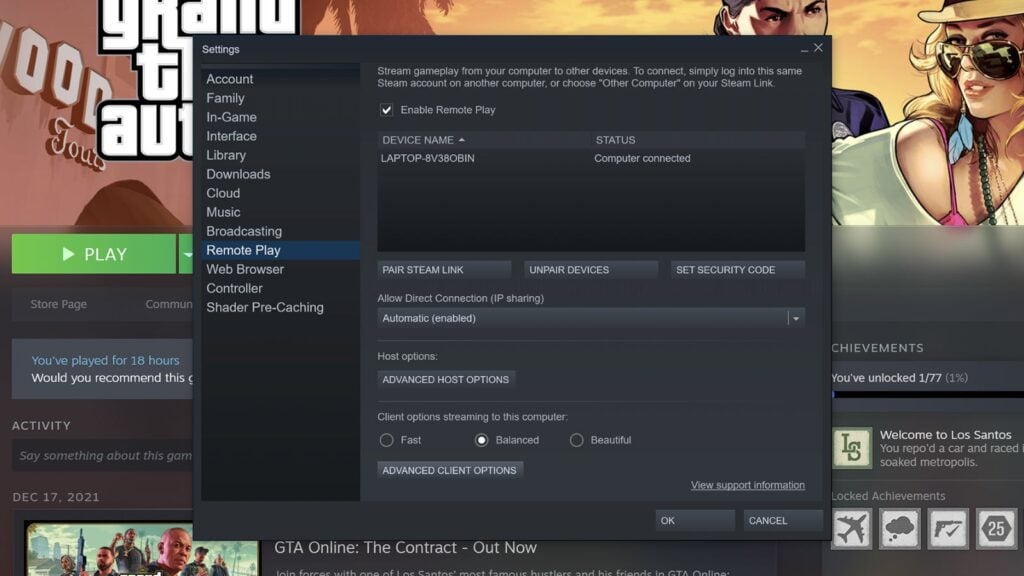
Steam Remote Play allows you to stream your Steam games from your powerful gaming PC to another device (like a laptop, tablet, or phone) within your home network or over the internet, essentially acting as a personal game streaming service for yourself or invited friends for local co-op. Public streaming, on the other hand, involves broadcasting your gameplay to a wide audience on platforms like Twitch or YouTube using dedicated streaming software (e.g., OBS Studio), making your gameplay visible to anyone who tunes in.
How can I improve my audio quality for Steam game streams?
Improving audio quality for Steam game streams involves several steps. Start with a decent microphone; even a good USB microphone is a significant upgrade from a headset mic. Position it correctly, close to your mouth. In OBS, use audio filters like 'Noise Suppression' (RNNoise is excellent), 'Compressor' to even out volume, and 'Gate' to cut out background noise when you are not speaking. Ensure your game audio is not too loud, drowning out your voice. Regularly monitor your audio levels during streams to maintain balance.
Are there any free tools to create custom overlays for my Steam game streams?
Yes, there are several excellent free tools available for creating custom overlays for your Steam game streams. Streamlabs Desktop has integrated overlay editors and free themes. OBS Studio allows you to import custom images and media. For designing assets, free online tools like Canva or photo editors like GIMP can be used to create stream graphics, webcam frames, and alerts. Many content creators also offer free overlay packs that you can download and customize to fit your personal brand.
How do I find a community or audience for my new Steam game stream?
Finding a community for your new Steam game stream requires active participation and promotion. Start by streaming games you genuinely enjoy, as your enthusiasm will shine through. Promote your streams on social media (Twitter, TikTok, Instagram) and relevant gaming subreddits or Discord servers (where allowed). Engage with other streamers and communities. Consistency in your streaming schedule helps viewers know when to expect you. Interact with your chat, ask questions, and build a friendly, welcoming environment to encourage repeat viewers and new followers.
Are you a US gamer who loves diving into your Steam library but often finds yourself wishing you could share those epic moments, challenge friends, or simply connect with a wider community? You are not alone. With 87% of US gamers regularly enjoying their passion, often dedicating 10 or more hours a week, finding that sweet spot between life's demands and gaming joy is crucial. Many of us, especially those balancing careers and families, look to gaming as a vital source of relaxation, skill-building, and social interaction. But the thought of setting up a stream for the first time can feel overwhelming, leading to common pain points like complicated software, performance drops, or budget worries.
This comprehensive guide is built for you, the busy gamer who wants practical solutions without the tech jargon or marketing hype. We will walk you through exactly how to streaming Steam games, demystifying the process from basic setup to advanced optimization. We understand you value performance optimization, value for money, and staying current with trends. That is why we are focusing on clear, actionable advice that addresses your real-world challenges: how to get a smooth stream even on a budget, how to balance your screen time, and how to make the most of your streaming journey to connect with others. Let us turn those streaming aspirations into reality.
What Is The Easiest Way To Start Streaming Steam Games Today
The easiest way to begin streaming Steam games involves leveraging integrated tools or user-friendly third-party software. Steam's own Remote Play feature allows you to stream to other devices, but for a public broadcast, OBS Studio and Streamlabs Desktop are top choices. These platforms offer robust features and are relatively simple to set up for basic streaming. They support popular platforms like Twitch and YouTube, making it straightforward to go live within minutes after initial configuration.
For a quick start, download and install OBS Studio. During the initial setup wizard, it will guide you through optimizing your settings for your specific hardware and internet connection. Select your desired streaming platform, log in, and then add a 'Game Capture' source to capture your Steam game. Ensure your audio is properly configured, and you are ready to hit 'Start Streaming'. It is an accessible path for anyone looking to dip their toes into the streaming world.
How Do I Choose The Right Streaming Software For My PC Setup
Choosing the right streaming software depends heavily on your PC's specifications and your streaming goals. For high-end PCs with dedicated GPUs, OBS Studio and Streamlabs Desktop offer unparalleled flexibility and features. They allow for intricate scene management, custom overlays, and professional audio mixing.
If you are working with an older or less powerful PC, optimizing for performance is key. Look for software that is lighter on system resources. While OBS Studio can be optimized, specialized, minimalist options or even direct platform integrations (like NVIDIA ShadowPlay for NVIDIA GPU users) might be more suitable. These can provide a smoother experience by reducing the strain on your CPU and GPU, ensuring your game maintains playable frame rates while streaming. Always test your settings before going live.
Can I Stream Steam Games On A Budget PC And How
Absolutely, streaming Steam games on a budget PC is achievable with the right optimizations and realistic expectations. The primary goal is to minimize the performance impact on your gaming experience while still delivering a watchable stream. This often means making compromises on stream quality, such as resolution and frame rate, but it is a perfectly valid starting point for many.
Here are key strategies:
- Software Choice: Use OBS Studio. It is highly customizable and less resource-intensive than some alternatives if configured correctly.
- Resolution and Frame Rate: Stream at 720p resolution and 30 frames per second (fps). This significantly reduces the data your PC needs to process and upload.
- Encoder: If you have a newer CPU, try x264 (CPU encoding) with a 'Veryfast' or 'Superfast' preset. If you have a modern GPU (NVIDIA GTX 10-series or newer, AMD RX 400-series or newer), use its dedicated encoder (NVENC or AMF/VCE). These hardware encoders are far more efficient.
- Bitrate: Adjust your bitrate based on your upload speed and chosen resolution. For 720p/30fps, a bitrate of 2500-3500 kbps is usually sufficient.
- In-Game Settings: Reduce your game's graphical settings. Lowering textures, shadows, and anti-aliasing frees up valuable GPU and CPU cycles for both gaming and streaming.
- Internet Connection: A stable upload speed is critical. Aim for at least 5-10 Mbps upload for decent 720p streaming.
By carefully tuning these settings, you can enjoy streaming your Steam games and connect with your audience without breaking the bank on new hardware. Remember, consistency and engaging content often matter more than pixel-perfect fidelity, especially when starting out.
What Are The Best Settings For Optimizing Stream Quality Versus Performance
Balancing stream quality and game performance is the eternal challenge for streamers. The ideal settings depend on your hardware, internet speed, and the specific game you are playing. For most US gamers balancing life and play, a smooth game experience takes precedence.
Here's a breakdown of key settings:
- Output Resolution (Scale Resolution): Often, downscaling from your monitor's native resolution to 1080p (1920x1080) or even 720p (1280x720) is crucial. 1080p is the standard for good quality, while 720p is excellent for lower-end systems or slower internet.
- Frame Rate (FPS): 60 FPS provides a smoother viewer experience, ideal for fast-paced games. 30 FPS is perfectly acceptable for slower games, strategy titles, or when you need to conserve system resources. Most content platforms like Twitch and YouTube handle both well.
- Encoder: If you have an NVIDIA GPU (GTX 16-series or newer), choose 'NVENC (new)'. For AMD GPUs, select 'AMD H.264/H.265 (if available)'. These hardware encoders offload the encoding process from your CPU, significantly improving game performance. If you only have a strong CPU and an older GPU, 'x264' (CPU encoding) can be an option, but it is more resource-intensive.
- Bitrate: This determines the amount of data sent per second. Higher bitrate equals better quality but requires more upload bandwidth.
| Resolution | FPS | Recommended Bitrate |
|---|---|---|
| 1080p | 60 | 4500-6000 kbps |
| 1080p | 30 | 3000-4500 kbps |
| 720p | 60 | 3000-4500 kbps |
| 720p | 30 | 2000-3500 kbps |
Experimentation is key. Start with slightly lower settings and gradually increase them until you find the sweet spot where both your game runs smoothly and your stream looks good.
How Do I Engage My Audience While Streaming Steam Games
Engaging your audience is as crucial as a stable stream, especially for Gen Z and Millennial gamers who thrive on social interaction. It is not just about playing the game; it is about building a community. Respond to chat messages regularly, even if it is just a quick emoji or a brief acknowledgment. Ask open-ended questions related to your gameplay or general gaming topics. Share your thoughts and reactions to the game in real-time.
Consider integrating community-driven elements like polls for game choices, Q&A sessions, or even multiplayer games where viewers can join. Discord is an excellent platform for building an off-stream community. Remember, gamers often seek stress relief and connection; a friendly, authentic personality goes a long way. Talk about popular trends, recent game releases, or even your favorite cozy games, making it relatable to your audience's gaming habits and balancing their life.
What Are The Best Steam Games To Stream For New Or Busy Gamers
For new or busy streamers, choosing the right Steam games can make a big difference in enjoyment and audience growth. Focus on titles that are inherently engaging, allow for easy conversation, or have active communities. Popular social/cozy games are trending this month, offering a relaxed environment perfect for chat interaction.
Consider these types of games:
- Co-op or Multiplayer: Games like Among Us, Phasmophobia, Valheim, or even Lethal Company provide natural social interaction, humor, and easy conversation starters.
- Story-Rich or Strategy Games: Titles like Stardew Valley, Baldur's Gate 3 (even if just for character creation/early acts), or Cities: Skylines allow for thoughtful commentary and can be played at a more relaxed pace.
- Indie Gems: Smaller indie games often have passionate fanbases and offer unique experiences. They can be less competitive to stream than AAA titles.
- Free-to-Play Titles: Games like Apex Legends, Fortnite, or Warframe have huge player bases, making it easy for viewers to jump in and understand the gameplay.
The key is to pick games you genuinely enjoy, as your enthusiasm will naturally attract and retain viewers. Many busy gamers appreciate streams of games they might not have time to play themselves, offering them a chance to experience new worlds passively.
How Can I Troubleshoot Common Steam Game Streaming Issues
Streaming can sometimes hit a snag, but many common issues have straightforward solutions. If your stream is lagging, dropping frames, or showing a black screen, these troubleshooting steps can help get you back on track.
- Lagging/Dropped Frames: This is often a sign of insufficient internet upload speed or your PC struggling.
- Lower your stream's bitrate, resolution, or frame rate in your streaming software.
- Close unnecessary background applications to free up CPU/GPU resources.
- Ensure your internet connection is stable. Use a wired Ethernet connection instead of Wi-Fi if possible.
- Update your graphics drivers.
- Black Screen on Game Capture: A frequent issue where the game window is not captured correctly.
- Run your streaming software (OBS/Streamlabs) as an administrator.
- Try changing the 'Capture Method' in your Game Capture source settings (e.g., from 'Capture any full-screen application' to 'Capture specific window' and select your game).
- Ensure your game is running in full-screen exclusive mode or borderless windowed mode.
- Disable any conflicting overlays (like Discord overlay or Steam overlay) temporarily.
- Audio Issues: Viewers cannot hear game sound or your microphone.
- Check audio mixer settings in your streaming software. Ensure game audio and microphone are enabled and not muted.
- Verify default audio devices in your Windows sound settings.
- Restart your streaming software and the game.
Remember, patience and systematic testing are your best allies when troubleshooting. Addressing these common problems will ensure a smoother and more reliable streaming experience for both you and your audience.
Conclusion
Streaming your favorite Steam games does not have to be a daunting task that takes away from your precious gaming time or budget. By understanding the right software, optimizing your settings, and focusing on genuine audience engagement, you can transform your gaming sessions into shared experiences. We have covered everything from getting started on a budget PC to troubleshooting common snags, all with the busy, passionate US gamer in mind. The world of live streaming offers a fantastic avenue for stress relief, skill-building, and connecting with a vibrant community. What is your biggest gaming challenge, and how do you plan to share your next adventure? Comment below and let us know!
FAQ Section
What internet speed do I need to stream Steam games effectively?
For smooth streaming of Steam games, aim for a stable upload speed of at least 5-10 Mbps for 720p at 30/60fps, and 10-20 Mbps for 1080p at 30/60fps. A wired Ethernet connection is always preferred over Wi-Fi for stability.
Can I stream Steam games directly from the Steam client?
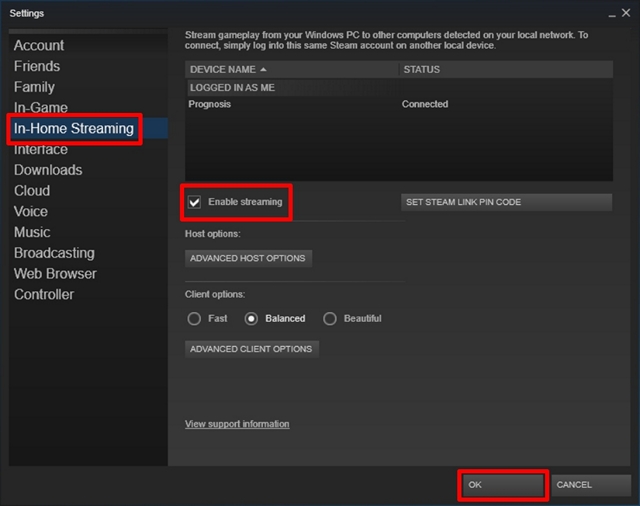
While Steam offers 'Remote Play Together' for local co-op over the internet, and 'Steam Link' for streaming to other devices, it does not have a native public broadcasting feature. You will need third-party software like OBS Studio or Streamlabs Desktop to stream to platforms like Twitch or YouTube.
Is it better to use CPU or GPU for encoding when streaming?
Generally, it is better to use your GPU's dedicated encoder (NVENC for NVIDIA, AMF/VCE for AMD) if you have a modern graphics card. This offloads the intensive encoding task from your CPU, allowing your CPU to focus on running the game, which usually results in better game performance and a smoother stream.
How do I protect my privacy while streaming Steam games?
To protect your privacy, avoid showing personal information on screen (e.g., real name, email, addresses). Ensure your stream layout covers or blurs any sensitive desktop notifications. Be mindful of your in-game name and any associated accounts. Using a VPN can also mask your IP address, adding an extra layer of security.
What are popular trends in game streaming for 2026?
In 2026, social gaming remains dominant, with many gamers enjoying co-op and community-focused titles. Free-to-play games continue to attract massive audiences, while interactive streams (polls, viewer games) are on the rise. VR experiments and indie games with unique mechanics also maintain a strong niche, alongside major AAA releases.
Do I need expensive hardware to start streaming Steam games?
No, you do not need expensive hardware to start. Many gamers begin with their existing PC, optimizing software settings (lower resolution, 30fps stream, efficient encoder). While high-end gear improves quality, consistent content and engagement are more critical for growing an audience, especially for busy gamers on a budget.
How can I make my Steam game streams more interactive?
Increase interaction by actively engaging with chat, asking open-ended questions, running polls (e.g., for next game or in-game decisions), and integrating community-driven events like viewer games or Q&A sessions. Use Discord to build a community off-stream and announce upcoming streams or events.
Easy Steam game streaming setup, performance optimization tips, budget-friendly hardware advice, social gaming integration, balancing gaming with life, troubleshooting common streaming issues, top software for streaming Steam, improving stream quality, monetizing your game streams, understanding platform choices like Twitch and YouTube.
35
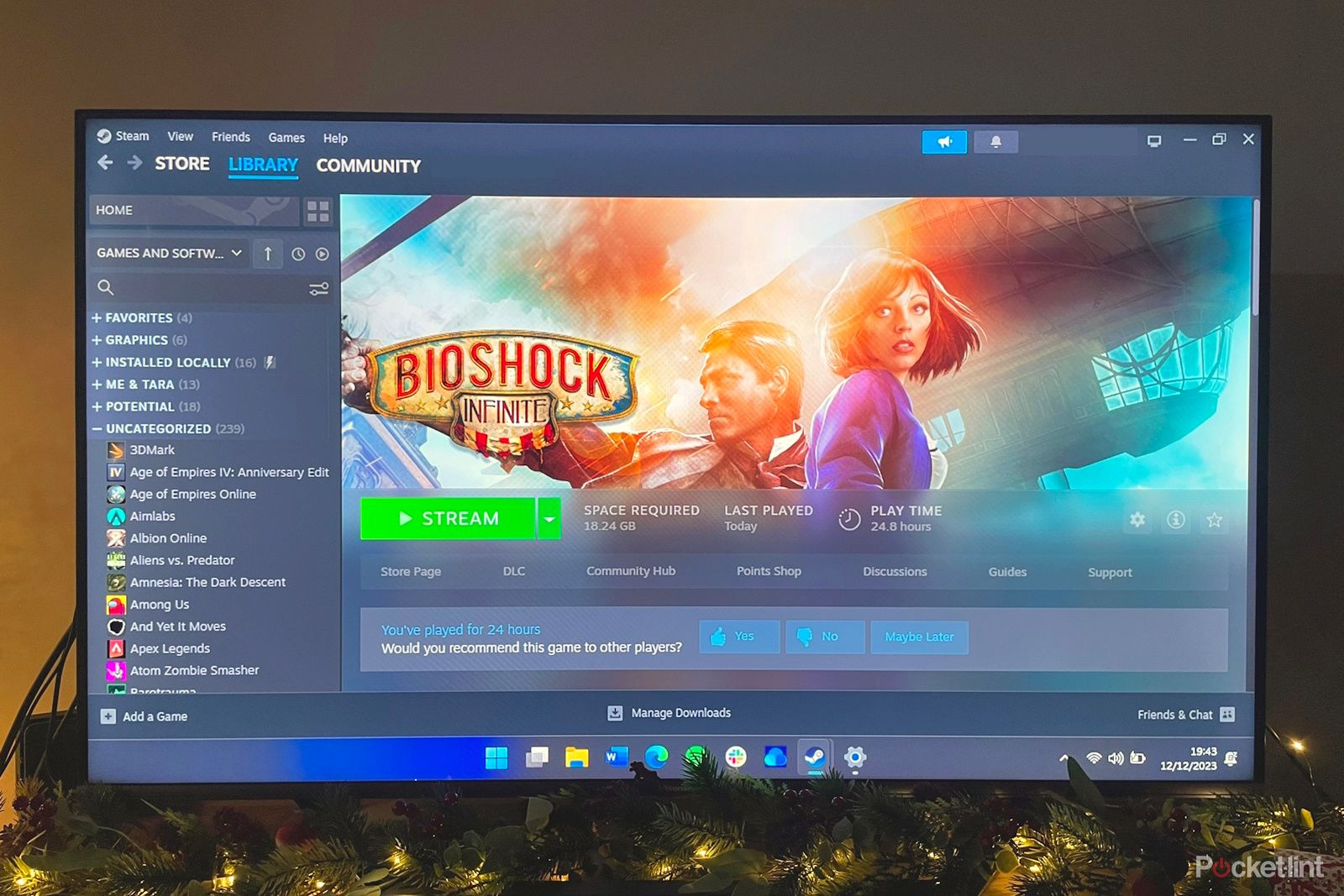

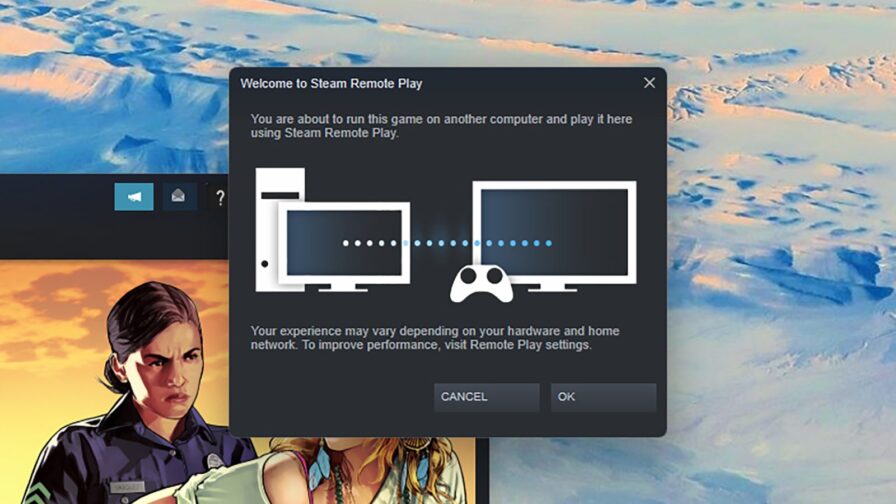

How To Stream Games On Steam Easy YouTube . How To Use Steam Link To Stream PC Games To TVs Phones Tablets Steam Link Stream Game To Tv 1 . How To Set Up Steam In Home Streaming Stream Your Steam Games To . How To Stream Your Steam Games To Any Device 896x504 . Steam Deck How To Stream Games From Your PC YouTube
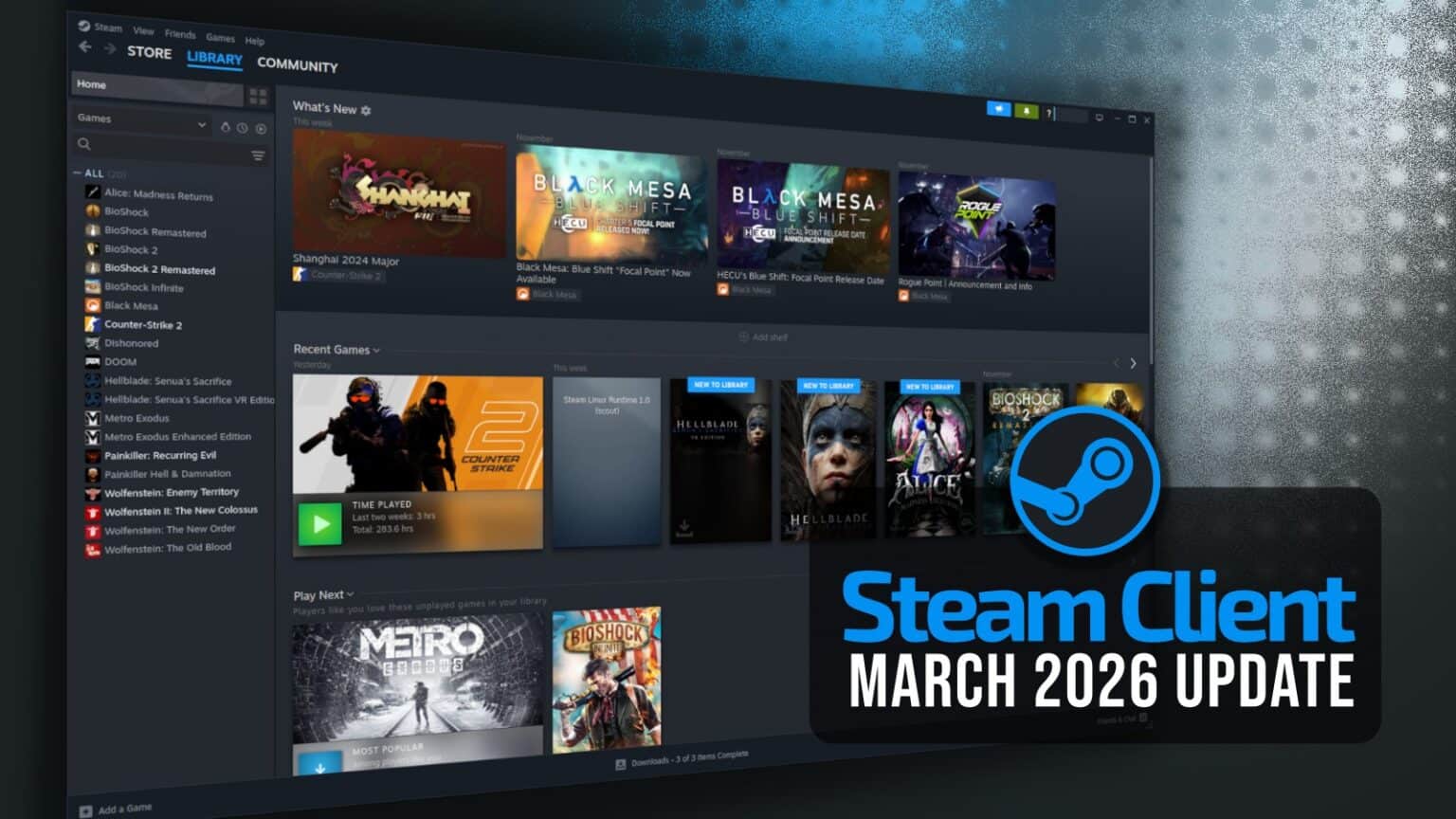
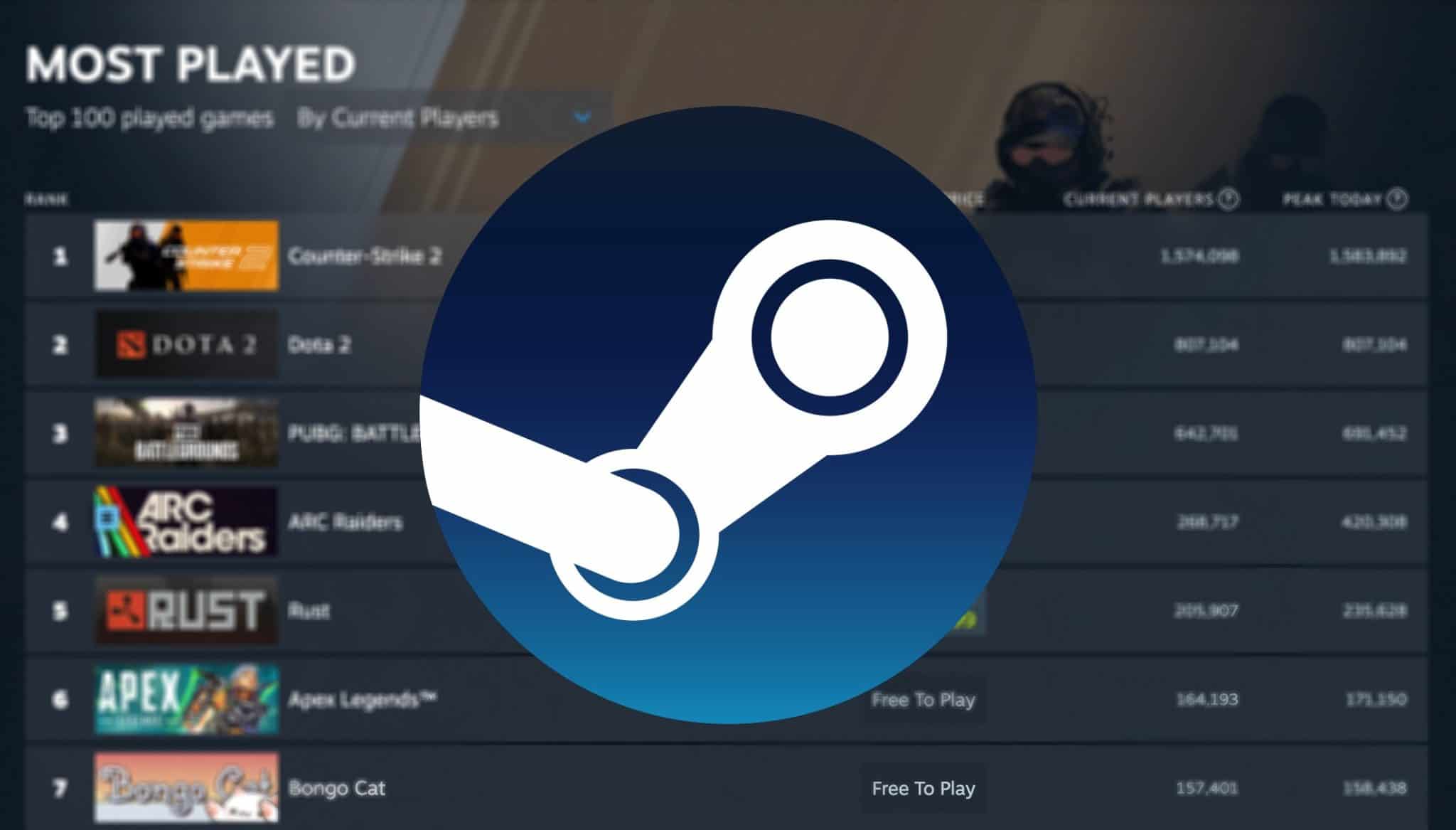

How To Remote Play On Steam 2026 Step By Step Guide YouTube . Steam March 2026 Client Update Adds Hardware Specs To User Reviews Steam Client Mar 2026 1536x864 . The Most Played Games On Steam For 2026 So Far Cheat Code Central Most Played Games Steam 2026 2048x1167 . How To Use Steam In Home Streaming Welcome To Steam In Home Streaming . Steam Sales 2026 Calendar Full Dates Best CD Key Deals AllKeyShop Com All Steam Events 2026



How To Stream Steam Games To A TV Steam . How To Return A Game On Steam Complete 2026 Refund Guide Technerdo Image. Steam 2026 4 New Free To Play Games Available Now AllKeyShop Com Showcase Steam Free Games 2026 Indie F2p Card Roguelike Sci Fi. Stream Steam Games How To Stream Gaming The Right Way Practical Tips . Can You Play Steam Games On Xbox Consoles GAMES IN 2026


How To Stream Steam Games To A TV Firetv 12 . How To Stream Your Steam Games To Any Device 896x504 . All 2026 Steam Fest Dates You Should Watch Out For Gamer Org All 2026 Steam Fest Dates You Should Watch Out For . How To Get Your Steam Replay Full March 2026 Guide How To Get Your Steam Replay 768x432 . Steam Starts 2026 With 4 New FREE Games No Strings Attached Steam Logo In Forest


How To Stream Your Steam Games To Any Device 1024x576 . How To Stream Steam Games To A TV Firetv 16 . How To Use Steam Home Streaming To Stream Games 1661506328 How To Use Steam Home Streaming To Stream Games . Gaming Anywhere How Do Steam And Android Connect Steam Machine 2026 Image 01 . Free Steam Games 2026 Best Free Games To Download Now Free Steam Games 2026 Best Free To Play April 300x201

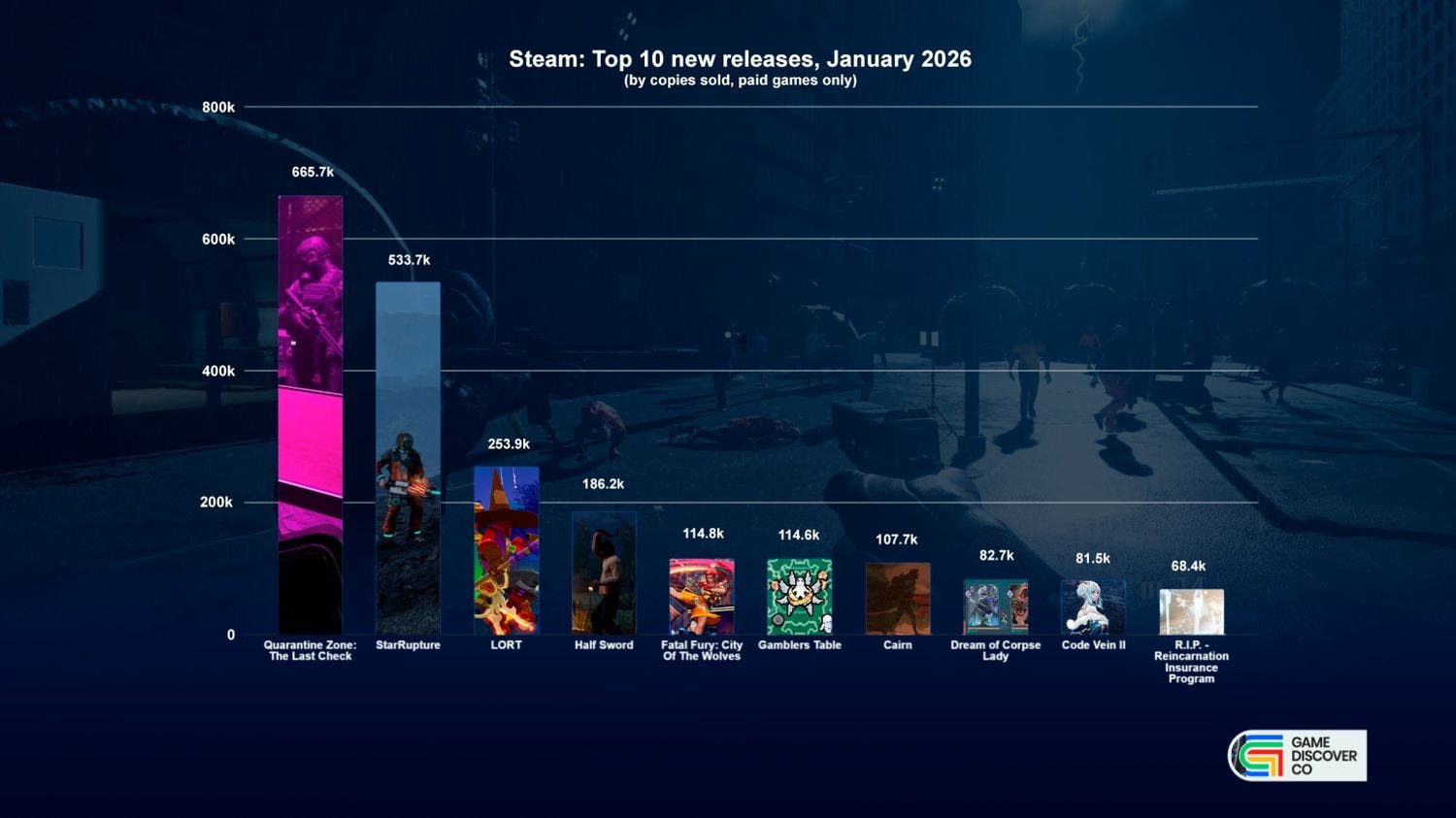


The Steam Store Just Got A Big Update With Great New Features Windows . How To Share Games On Steam 2026 Step By Step YouTube . January 2026 S Top Selling New Steam Games Revealed 08418405 04a2 47eb B48b 1500x843 . 2026 Upcoming Games And Game Release Dates Guide 2026 Upcoming Games Release Dates . Steam Sale 2026 Key Dates You Need To Know LevelUpTalk Steam Sale Schedule 2026 08 27 2025 7c35051e 2c22 4093 96f1

Steam Next Fest 2026 And Beyond All The Dates Details And Everything. Top 10 Game Streaming Platforms To Use In 2024 Steam . How To Use Steam In Home Streaming To Stream Games Beebom In Home Streaming . Steam Next Fest February 2026 Full Guide GAMES GG Medium Steam Next Fest February 2026 Full Guide 5ec0dcf67f . Steam Frame Reveals Wireless Streaming And Early 2026 Launch Why It 41682 Steam Frame Reveals Wireless Streaming And Early 2026 Launch Why It Matters Now