Are you a busy gamer looking to add a new layer of fun and anonymity to your Roblox experience? Understanding how to get a voice changer on Roblox can transform your interactions, whether you are roleplaying with friends, protecting your privacy, or simply injecting some humor into your online sessions. This comprehensive guide is tailored for adult gamers who balance work, family, and a passion for gaming, offering practical, no-nonsense advice. We will dive into the best software options, step-by-step setup instructions for PC users, and crucial safety tips to ensure a smooth, enjoyable, and secure experience. Discover how to enhance your social gaming, prevent common setup headaches, and choose budget-friendly solutions that fit into your lifestyle. Learn about popular trends and how to seamlessly integrate these tools into your existing gaming setup, ensuring you stay current without falling for hype. Our goal is to provide clear, actionable information so you can quickly get back to what you love: gaming with friends and enjoying your precious downtime. Let's make your Roblox adventures even more engaging.
How can I install a voice changer for Roblox?
Installing a voice changer for Roblox typically involves downloading a reputable third-party software like Voicemod or Clownfish, installing it on your PC, and then configuring its virtual audio device as your default microphone input in your system's sound settings and within Roblox or your communication app like Discord. Always download from official sources for safety.
Is it safe to use a voice changer while playing Roblox?
Yes, it is safe to use a voice changer on Roblox provided you choose well-known, legitimate software and use it responsibly. Avoid downloading from unverified sources to prevent malware. Ethical use, respecting other players and Roblox's community guidelines, ensures a positive and secure experience for everyone in the game.
What are the best free voice changers for Roblox PC users?
For PC users, Clownfish Voice Changer is an excellent completely free and lightweight option that works system-wide. Voicemod also offers a robust free version with a rotating selection of voices daily, allowing you to experiment with different effects without any cost. Both provide solid functionality for casual fun on Roblox.
Can I use a voice changer on Roblox Mobile?
Direct real-time voice changing on Roblox Mobile is generally not feasible due to mobile operating system limitations. Most mobile voice changer apps only record and play back altered audio, rather than providing live in-game modification. PC-based voice changers used with Discord while playing mobile Roblox is a common workaround.
Why would an adult gamer want a voice changer for Roblox?
Adult gamers use voice changers on Roblox for diverse reasons, including enhancing roleplay immersion, adding humor to social interactions, and protecting personal privacy by masking their natural voice. It allows for creative expression and a more engaging, personalized gaming experience without compromising their identity.
How do I set up my voice changer with Discord for Roblox games?
After installing your voice changer and setting its virtual microphone as your Windows default, open Discord, go to 'User Settings' > 'Voice & Video,' and select the voice changer's virtual microphone as your 'Input Device.' Test your mic to ensure the effects are active, allowing you to chat with friends in an altered voice while playing Roblox.
Are there any risks to using voice changing software?
The primary risks associated with voice changing software include downloading malware from untrusted sources or experiencing minor performance issues on older PCs. To mitigate these, always download from official developer websites, keep your software updated, and ensure ethical usage to avoid violating community guidelines or causing discomfort to other players.
For many of us who juggle careers, family, and the daily grind, gaming is more than just a pastime; it is a vital outlet for relaxation, connection, and a bit of well-deserved fun. Roblox, with its vast universe of user-created games, offers endless opportunities for escape and social interaction. But what if you could take that interaction to the next level, adding a fresh twist to your voice in game, enhancing roleplay, or simply maintaining a layer of privacy? That is where a voice changer comes in. Many adult gamers, part of the 87% who game regularly, logging 10+ hours a week, are always looking for ways to optimize their experience and inject more enjoyment into their limited gaming time.
You might be wondering how to get a voice changer on Roblox without complicated setups or breaking the bank. Perhaps you have heard about friends using them for hilarious moments in Adopt Me or serious roleplay in Brookhaven, and now you want in. This guide is built specifically for you: the busy, discerning gamer who values practical solutions, reliable performance, and sensible spending. We will cut through the noise, address common pain points like tricky installations and compatibility issues, and provide clear, step-by-step instructions. By the end, you will have all the knowledge you need to confidently implement a voice changer, making your Roblox sessions even more engaging and personalized.
What is a Voice Changer and Why Use One on Roblox?
A voice changer is a software application or hardware device that modifies the pitch, tone, and other characteristics of your voice in real time. This allows you to sound like a robot, an alien, a child, or even a different gender, instantly transforming your vocal output. On platforms like Roblox, where social interaction is key, voice changers open up a world of creative possibilities.
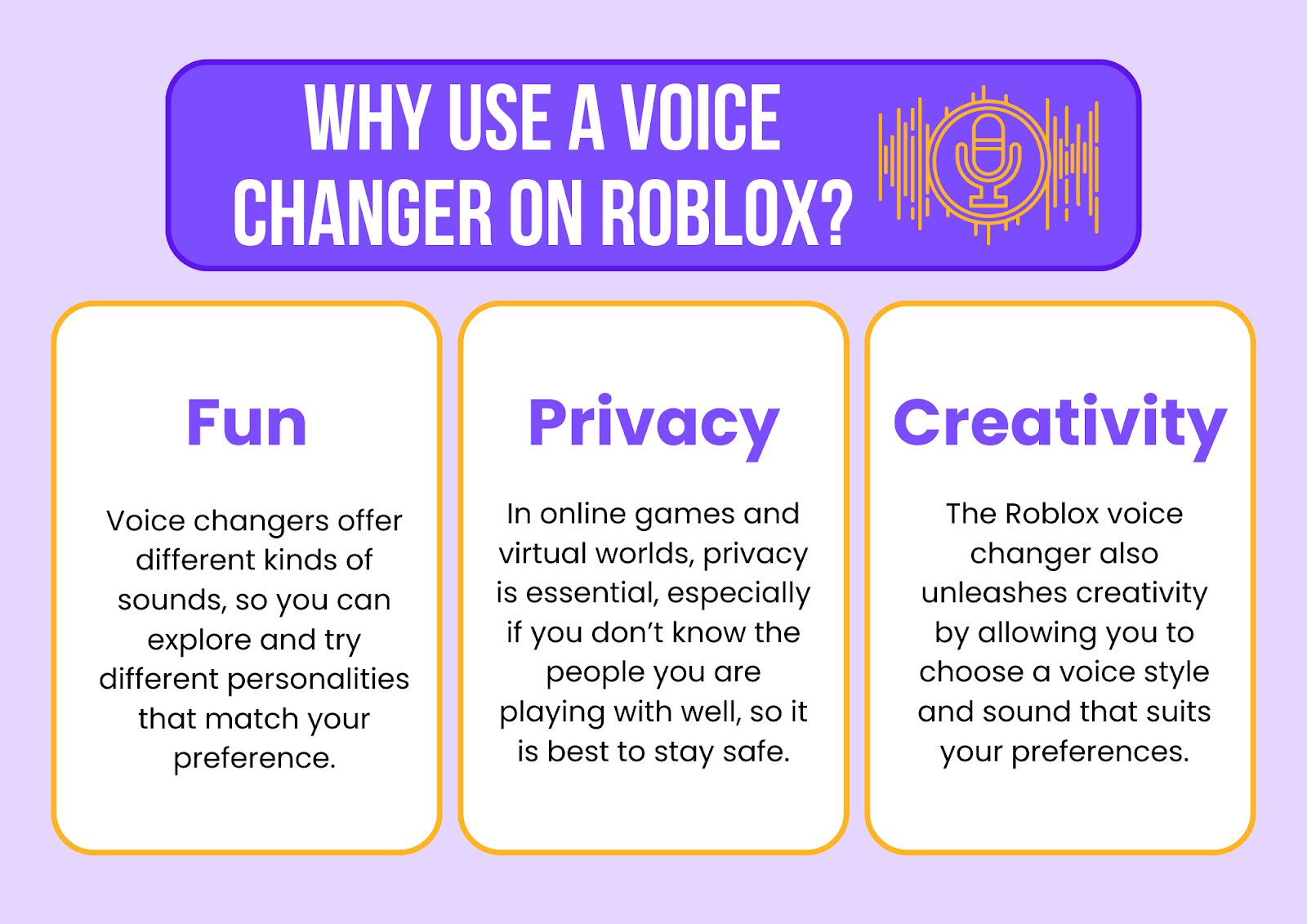
Gamers utilize voice changers for several compelling reasons. For many, it is about enhancing the fun and immersion of roleplaying scenarios, letting you fully embody a character. Others use them for comedic effect, bringing laughter to their friends in casual games. Privacy is another significant factor; a voice changer can mask your natural voice, adding an extra layer of anonymity, which is particularly appealing to adult gamers who prioritize their online identity management. With mobile gaming on the rise and cross-play becoming standard, maintaining a consistent persona across devices and platforms is increasingly important.
Is Using a Voice Changer on Roblox Allowed or Safe?
Generally, using a voice changer for personal entertainment or roleplay on Roblox is not against their terms of service, as long as it is not used for harassment, bullying, or any malicious activities. Roblox focuses on creating a safe environment, so ethical use is paramount. Always ensure you are using the software responsibly and respectfully towards other players.
Regarding safety, the key lies in choosing reputable voice changer software. Many free or lesser-known programs can come bundled with malware or compromise your system's security. Sticking to well-established, frequently updated applications helps protect your PC from vulnerabilities. As a gamer balancing life, the last thing you need is a system compromise disrupting your precious gaming time or causing performance issues. Always download directly from the official developer websites and be wary of suspicious links or downloads.
How to Get a Voice Changer for Roblox PC Step-by-Step?
Getting a voice changer set up for Roblox on your PC involves a few straightforward steps. This process ensures the software intercepts your microphone input before it reaches Roblox or your communication app like Discord, which many US gamers use for social play.
Here is a general guide:
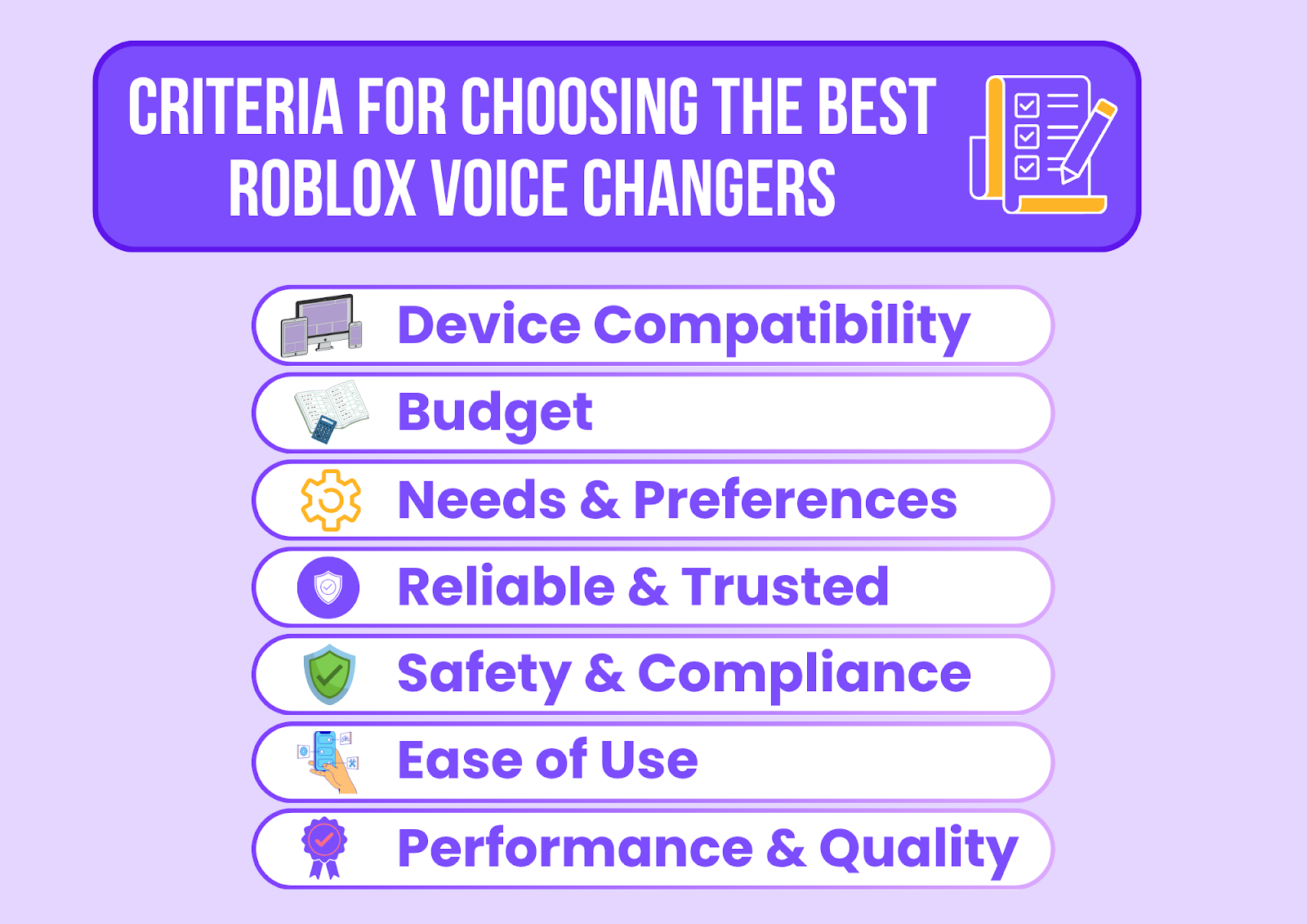
Choose Your Software: Select a reliable voice changer like Voicemod, Clownfish Voice Changer, or MorphVOX Pro. Research reviews and check compatibility with your operating system.
Download and Install: Visit the official website of your chosen software. Download the installer and follow the on-screen instructions. Most installations are quick and user-friendly, designed to get you back to gaming fast.
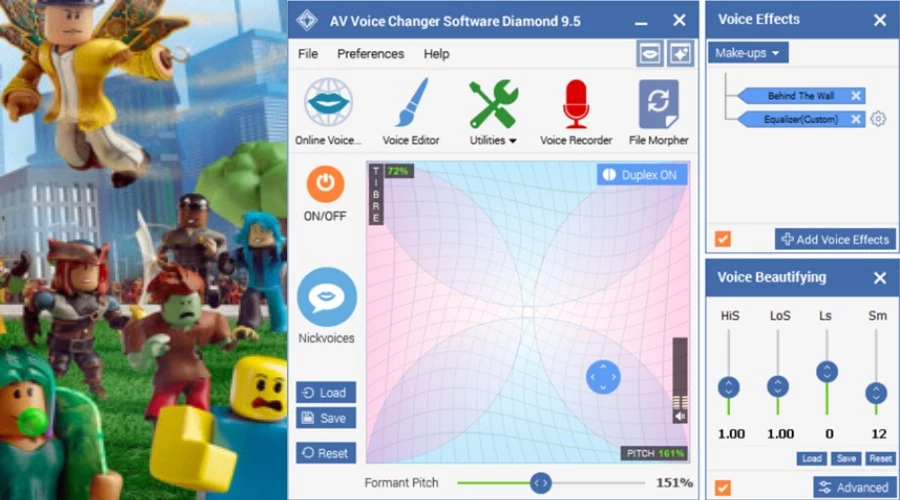
Configure Your Microphone Input: After installation, open the voice changer application. You will typically need to select your physical microphone (e.g., your headset mic) as the input device within the voice changer's settings. Then, the voice changer software will create a virtual microphone output.
Set Virtual Mic as Default: Go to your Windows Sound Settings. Right-click the speaker icon in your taskbar, select 'Sound Settings' or 'Sound Control Panel'. Under the 'Recording' tab, you should see the virtual microphone created by your voice changer (e.g., 'Voicemod Virtual Audio Device'). Right-click it and set it as your 'Default Device' and 'Default Communication Device'.
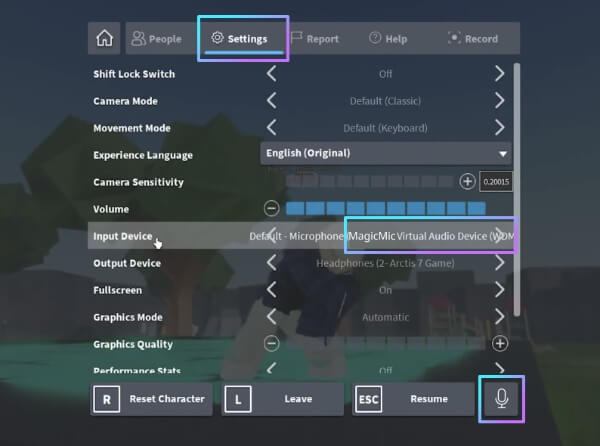
Configure Roblox/Discord: Launch Roblox. If Roblox supports in-game voice chat (which is becoming more common, especially for older users), go to its settings and ensure your virtual microphone is selected as the input device. For Discord, open 'User Settings,' navigate to 'Voice & Video,' and select your voice changer's virtual microphone as the 'Input Device.' Test your voice to ensure it is working correctly.
This careful setup prevents audio conflicts and ensures your chosen voice effect is heard by others. Remember, an efficient setup means more time enjoying your game, a priority for gamers who value their limited free moments.
Which are the Best Voice Changer Software for Roblox in 2026?
Choosing the right voice changer often comes down to balancing features, ease of use, and budget. For 2026, several popular options stand out, catering to different gamer needs, from casual fun to streaming quality.
| Software | Key Features | Pros | Cons | Price Point |
|---|---|---|---|---|
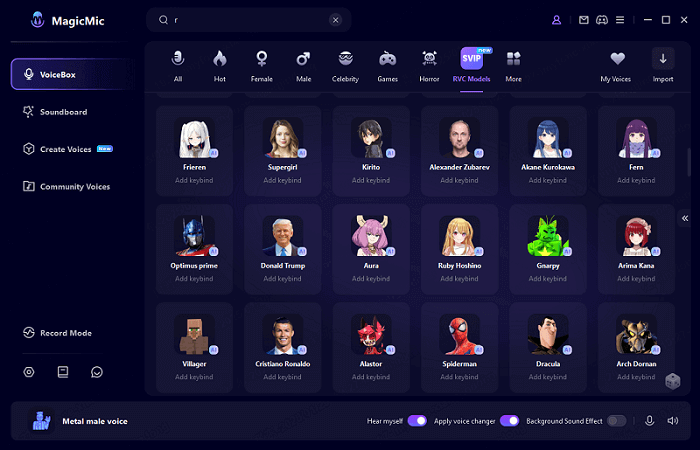
| Voicemod | Real-time voice changer, soundboard, custom voice creator, integration with Discord/Twitch/Roblox. | User-friendly interface, wide range of voices, excellent integration, frequent updates. | Free version has limited voices, premium can be pricey. | Free (limited) / Premium ($$$) |
| Clownfish Voice Changer | System-wide sound capture, multiple voice effects, music player, sound effects. | Completely free, lightweight, easy to install and use system-wide. | Fewer advanced features, interface is basic. | Free |
| MorphVOX Pro | High-quality voice changing, background cancellation, sound effects, fine-tuning. | Professional sound quality, good for streaming, comprehensive customization. | Interface can be complex for beginners, premium cost. | Free (Jr) / Premium ($$) |
For most adult gamers looking for a reliable and fun experience, Voicemod offers an excellent balance of features and usability, even with its free tier. If budget is a primary concern, Clownfish is a fantastic, no-cost alternative that gets the job done without fuss. Many gamers on tight budgets appreciate these free-to-play options, similar to how they enjoy free-to-play games that offer substantial content without upfront cost.
Can You Get a Free Voice Changer for Roblox?
Absolutely! You do not need to spend a dime to start having fun with a voice changer on Roblox. Several reputable options offer robust free versions that provide a good selection of voice effects and functionality.
Clownfish Voice Changer is perhaps the most well-known and reliable free option. It works system-wide, meaning once set up, it will apply to any application using your microphone, including Roblox and Discord. Its simplicity and effectiveness make it a favorite for gamers who just want to get started without a hefty investment or complicated features.
Voicemod also offers a compelling free tier. While the full suite of its extensive voice library and soundboard features is reserved for premium users, the free version rotates a selection of voices daily. This allows you to experiment with different effects and decide if the full version is worth the upgrade for your gaming style. For many, the free options are more than enough to enhance their social gaming and roleplay experiences.
How Do I Set Up My Voice Changer with Roblox and Discord?
Integrating your voice changer with Roblox and Discord is crucial for social gaming, where clear and fun communication is key. While the general setup involves making the virtual mic your default, there are specific steps for each application to ensure seamless integration.
For Discord, after setting your voice changer's virtual mic as your system default (as described earlier):
Open Discord and click the 'User Settings' gear icon (bottom left).
Go to 'Voice & Video' under 'App Settings'.
In the 'Input Device' dropdown menu, select your voice changer's virtual microphone (e.g., 'Voicemod Virtual Audio Device').
Adjust the 'Input Volume' as needed. It's often helpful to disable 'Automatically determine input sensitivity' and set it manually.
Click 'Let's Check' under 'Mic Test' to hear how you sound with the voice effect active.
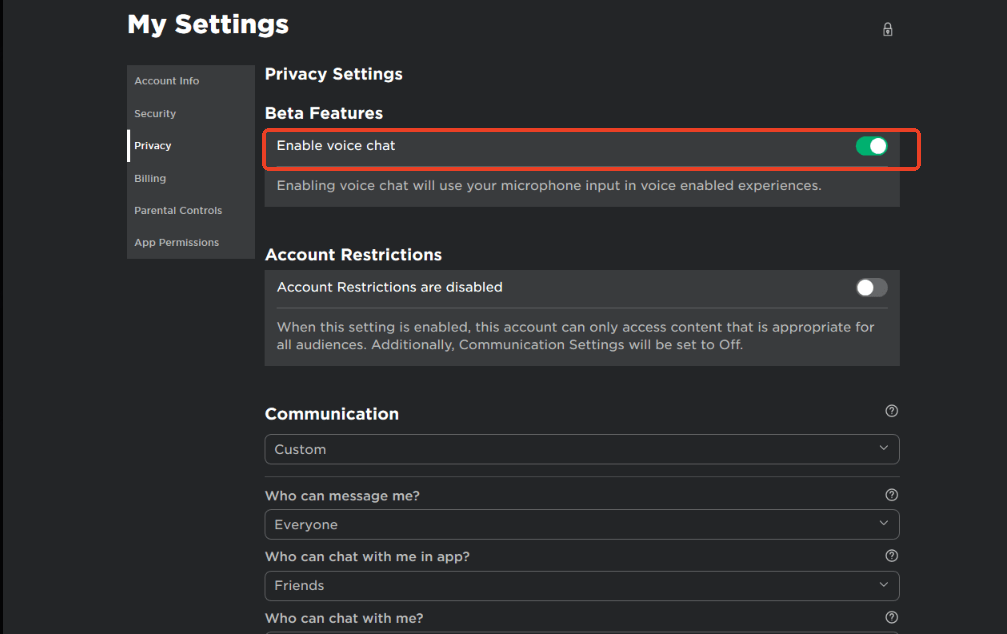
For Roblox, direct in-game voice chat integration might vary depending on the specific game and Roblox's current features for different age groups. If Roblox has a dedicated voice chat setting:
Launch a Roblox game that supports voice chat.
Access the game's settings or Roblox's universal settings if available.
Look for 'Audio' or 'Voice Chat' options and select your voice changer's virtual microphone as the input.
If a direct Roblox setting is not available or you are playing a game without native voice chat, your voice changer will still work through Discord or other communication apps you use while playing Roblox, allowing you to chat with your friends in your altered voice. This flexibility is great for adult gamers who often use Discord to coordinate with their friends across different games and platforms.
Troubleshooting Common Voice Changer Issues on Roblox.
Even with the best tools, you might encounter a hiccup or two. Here are common issues and quick fixes:
No Voice Detected: Double-check that your physical microphone is selected as the input in your voice changer software, and that the voice changer's virtual mic is set as the default input in both Windows Sound Settings and Discord/Roblox.
Voice Sounds Muffled or Robotic (unintentionally): This could be due to incorrect audio settings, especially input sensitivity or noise gate settings. Adjust these within your voice changer or Discord's 'Voice & Video' settings. Ensure your actual microphone is working optimally.
Voice Changer Not Starting with Game: Some voice changers need to be launched before your game or communication app. Make sure the voice changer software is running in the background before you launch Roblox or Discord.
Lag or Performance Issues: Voice changers, especially those with complex effects, use CPU resources. If you have an older system or are running many background applications, you might experience lag. Try closing unnecessary programs, reducing the complexity of the voice effect, or checking for driver updates for your audio hardware. Gamers who balance budget and performance often find that simple, lightweight voice changers are best.
Roblox or Discord Not Recognizing Virtual Mic: Sometimes a system restart after installing the voice changer can resolve this. Also, ensure both Roblox and Discord are updated to their latest versions.
These practical solutions aim to get you back to your game quickly, minimizing frustration and maximizing your precious free time.
Are Voice Changers Available for Roblox Mobile Users?
The landscape for voice changers on mobile platforms, including Roblox Mobile, is significantly different from PC. Due to the sandboxed nature of mobile operating systems (iOS and Android) and stricter app permissions, directly integrating a system-wide voice changer as easily as on PC is generally not possible.
Most mobile voice changer apps record your voice and then allow you to play back the altered audio, rather than providing real-time modification during live gameplay. While some apps claim real-time capabilities, they often work best within their own ecosystem or specific voice chat apps, not universally across all games like Roblox.
For Roblox Mobile, if you are looking to use a voice changer with friends, your best bet is often to use a PC-based voice changer while communicating via Discord on your PC, even if you are playing Roblox on your mobile device. Alternatively, some mobile voice chat apps might have built-in voice effects, but these would be limited to those specific applications. The rise of mobile gaming is undeniable, but the technical limitations for system-wide real-time voice modification remain a challenge.
Ethical Considerations When Using a Voice Changer on Roblox.
While voice changers offer immense fun and utility, responsible use is paramount, especially in a community like Roblox, which includes many younger players. The golden rule is to use your voice changer to enhance positive interactions, not to detract from them.
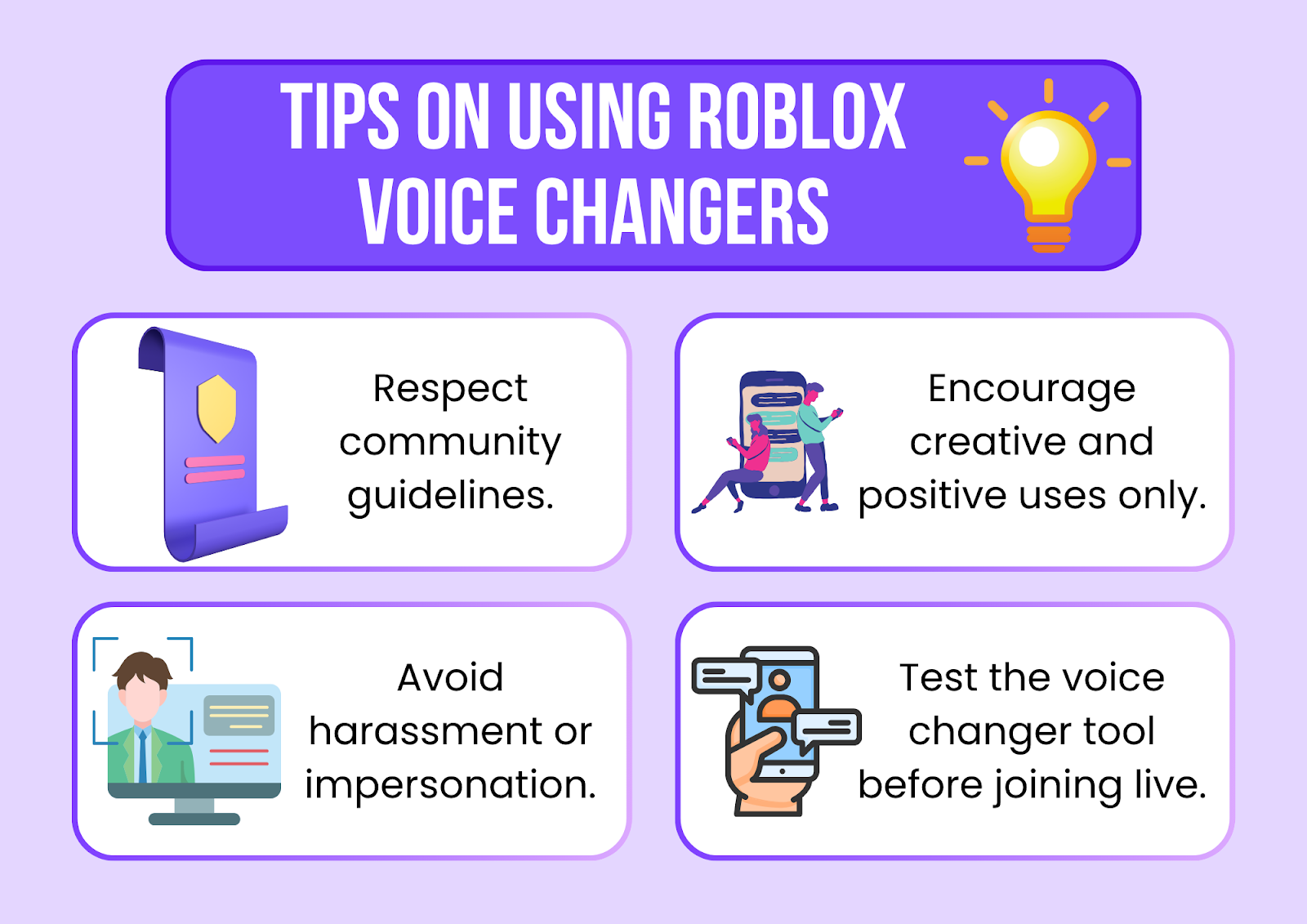
Respect and Consent: Always consider how your altered voice might be perceived. While a silly voice can be fun, using a voice changer to intentionally mislead, harass, or make others uncomfortable is never acceptable. Avoid using it to impersonate others or to create a false sense of identity for malicious purposes.
Privacy: While a voice changer can offer you privacy, respect the privacy of others. Do not record or share conversations without explicit consent, especially if altered voices are involved.
Community Guidelines: Familiarize yourself with Roblox's Community Standards. Any use of a voice changer that violates these guidelines can lead to account suspension. This means no hate speech, bullying, or inappropriate content, regardless of how your voice sounds.
Age Appropriateness: Be mindful of the age demographics on Roblox. What might be a harmless prank among adult friends could be confusing or distressing to a younger player. Our gaming community thrives on mutual respect, and as adult gamers, we set an example.
By keeping these ethical considerations in mind, you can ensure your voice changer use contributes positively to the vibrant Roblox community, enhancing your fun without causing harm or discomfort to others.
How to Balance Fun with Responsible Voice Changer Use?
Balancing the exciting possibilities of voice changers with responsible use is key to maximizing your enjoyment and maintaining a healthy gaming environment. It's about being a good digital citizen, a trait many adult gamers value as they navigate online spaces.
Think of your voice changer as another tool in your gaming arsenal, like a new headset or a custom keyboard. It's there to enhance your experience, not to be a source of problems. Use it for planned roleplay sessions where everyone is in on the fun, or to add a lighthearted touch to casual chats with trusted friends. For competitive games or discussions on sensitive topics, it's often best to revert to your natural voice to ensure clarity and avoid misunderstandings.
Remember that communication clarity often overrides comedic effect. If your altered voice makes it difficult for others to understand you during crucial gameplay moments, consider temporarily disabling it. Ultimately, the goal is to enhance your social interactions and enjoyment, not to create barriers. By being thoughtful and considerate, you can leverage voice changers to unlock new levels of fun in Roblox, all while maintaining positive connections within the gaming community.
Conclusion
Navigating the world of voice changers for Roblox does not have to be a daunting task, especially for busy adult gamers. By choosing reliable software, following straightforward setup guides, and always prioritizing responsible and ethical use, you can seamlessly integrate this fun tool into your gaming routine. Whether you are looking to enhance roleplay, add humor to your chats, or simply enjoy a layer of vocal privacy, the options are readily available and often budget-friendly.
We hope this guide has demystified how to get a voice changer on Roblox, providing you with the practical, actionable insights you need to get started. The gaming community is always evolving, and tools like voice changers allow us to keep our experiences fresh and engaging. Remember to prioritize safety, respect, and fun in all your online interactions. What is your biggest gaming challenge when it comes to social play or customization? Comment below!
FAQ Section
Q: Do voice changers cause lag in Roblox?
A: Reputable voice changer software like Voicemod or Clownfish is generally optimized to have a minimal impact on system performance. However, if your PC has older hardware or you are running many applications simultaneously, you might notice a slight increase in CPU usage. For most modern gaming setups, any lag from a voice changer should be negligible, allowing for smooth gameplay.
Q: Can I use a voice changer if I don't have a good microphone?
A: While a voice changer can alter your voice, the quality of the original input still matters. A poor-quality microphone might result in a muffled or distorted sound even after being processed. For the best results, using a decent headset microphone or a dedicated gaming mic is recommended, though a basic mic will still allow the voice changer to function.
Q: What if Roblox updates and my voice changer stops working?
A: Major updates to Roblox or your operating system can sometimes interfere with how voice changers interact with your audio devices. If this happens, first check for updates for your voice changer software. Often, developers release patches quickly to ensure compatibility. Re-checking your system sound settings and in-game audio input selection is also a good troubleshooting step.
Q: Are there any voice changers built directly into Roblox?
A: As of 2026, Roblox does not have a native, built-in voice changer feature that allows users to alter their voices in real-time universally across all games. Voice changing functionality comes from third-party applications that integrate with your system's audio input. Roblox's focus is on core gameplay and social features, with voice modification left to external tools.
Q: How can I ensure my voice changer is only active when I want it to be?
A: To ensure your voice changer is only active when desired, you can use its toggle function (often a hotkey or button within the software) to quickly switch between your altered and natural voice. Additionally, in Discord's 'Voice & Video' settings, you can easily switch your input device back to your physical microphone when you want to bypass the voice changer entirely, offering flexible control.
Q: Is it possible to use voice changers on console versions of Roblox?
A: Voice changers are typically not directly supported on console versions of Roblox (e.g., Xbox, PlayStation, Nintendo Switch). Console operating systems are more locked down, making it difficult for third-party software to intercept and modify audio input in real time. PC is currently the primary platform for utilizing voice changer software with Roblox.
What about using a voice changer for Twitch streaming Roblox?
For gamers who also stream Roblox on platforms like Twitch or YouTube, integrating a voice changer is a common practice to enhance content and entertainment. Software like Voicemod is popular among streamers due to its high-quality effects, soundboard features, and seamless integration with streaming software like OBS or Streamlabs. This allows streamers to create engaging personas or add comedic elements, enriching their live broadcasts and connecting with viewers.
Easy step-by-step guide for Roblox voice changers, Top recommended safe software, How to configure voice changers for optimal performance, Tips for fun and responsible use, Troubleshooting common issues effectively.
35



How To Use Voice Changer In Roblox For Free With Voicemod YouTube . How To Use Voice Changer In Roblox Full Guide YouTube . How To Use A Voice Changer On ROBLOX VC FREE IPhone Wired 1690319104 . Top 6 Voice Changers For Roblox 2026 Real Time Free To Use Voicemod Roblox Voice Changer . How To Get Voice Changer On Roblox For Free Full Guide YouTube


Top 6 Voice Changers For Roblox 2026 Real Time Free To Use . Voice Changer For Roblox 7 Best In 2026 Voice Changer Roblox.webp. How To Get A Voice Changer Soundboard On ROBLOX VC 2024 YouTube . Best Free Voice Changer For Roblox Voice Chat 2026 UPDATED YouTube . How To Use A Voice Changer In Roblox Using Clownfish YouTube



How To Use Voice Changer On Roblox YouTube . Voice Changer For Roblox 7 Best In 2026 Av Voice Changer Roblox.webp. How To Get Voice Chat On Roblox 2026 Enable VC Without ID Izoate How To Enable Voice Chat In Roblox 2026.webp. How To Use Voice Changer In Roblox Full Guide YouTube . How To Get Voice Chat On Roblox 2026 YouTube


Top 6 Voice Changers For Roblox 2026 Real Time Free To Use Roblox Voice Setting . Top 5 Roblox Voice Changers In 2026 Tips On Using Roblox Voice Changers . How To Get Voice Chat On Roblox 2026 WITHOUT IDA YouTube Hqdefault . How To Enable Voice Chat In Roblox 2026 Get Voice Chat On Roblox . How To Get Voice Chat On Roblox 2026 Enable VC Without ID Izoate Roblox Voice Chat Age Verified


How To Get Voice Chat On Roblox FREE 2026 UPDATED YouTube . How To Enable Voice Chat In Roblox Fixes Tips Enable Voice Chat In Roblox . How To Get Voice Chat On Roblox In 2026 YouTube . Top 5 Roblox Voice Changers In 2026 Criteria For Choosing The Best Roblox Voice Changers . Top 6 Voice Changers For Roblox 2026 Real Time Free To Use Enable Roblox Voice Chat

Top 6 Voice Changers For Roblox 2026 Real Time Free To Use How To Get Voice Chat Roblox . Top 6 Voice Changers For Roblox 2026 Real Time Free To Use Roblox Voice Changer Magicmic . Top 6 Voice Changers For Roblox 2026 Real Time Free To Use Magicvox Voice Changer Overview . HOW To ENABLE VOICE CHAT On ROBLOX In 2026 How To Get Voice Chat Img. Roblox Voice Chat Setup How To Get It Fast June 2026 How To Get Voice Chat In Roblox 1024x683



Top 5 Roblox Voice Changers In 2026 Why Use A Voice Changer On Roblox . Best Voice Changer For Roblox Ultimate Guide For Game Lovers Image 2024 11 27 030920843 770x541 . How To Change Voice In Roblox Voice Chat 2025 YouTube . Top 6 Best Voice Changer For Roblox 2026 Update EaseUS Roblox Voice Changer . How To Use Voice Changer On Roblox YouTube